01
Concept Generator
Turn a clear product brief into a six-board visual concept.
2:17 · 8 chapters
In this walkthrough
- Start a new idea and describe who it is for.
- Add requirements, references and success criteria.
- Review your brief and submit it for studio review.
- Follow your project, answer questions and open your concept pack.
 See the example
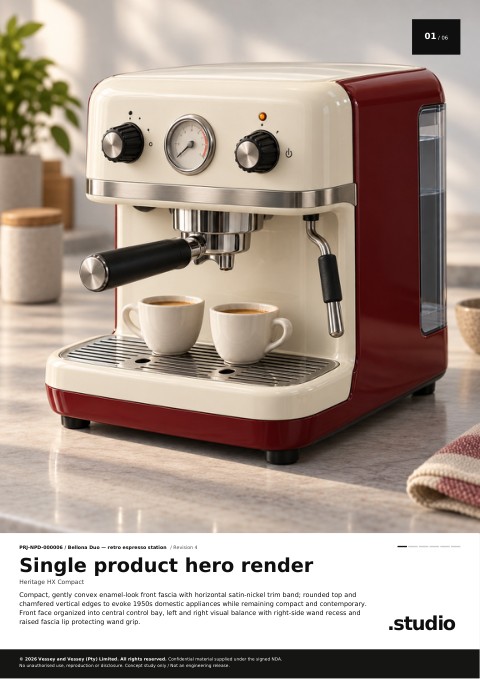
Bellona Duo concept packPDF · 6 boards
Read the complete concept instructions
- Sign in, complete your confidentiality agreement and open Product brief. Choose Start a new idea.
- Enter your contact details and give the project a name. In this example, it is Bellona Duo — retro espresso station.
- Describe the user and the requirements. For Bellona Duo, a home barista needs a compact station with separate steam control and a readable pressure gauge. In Functions and interactions, complete the required safety and misuse field: describe hot surfaces, steam exposure and the checks a prototype needs.
- Choose Save and continue after each section or Save for later to pause. Add relevant references.
- Enter your success criteria, read the acknowledgements and choose Review saved brief. Complete any missing required answers.
- Check the saved answers, then choose Submit brief for approval.
- On the confirmation screen, choose Track my concept to follow the project.
- Your project shows its progress after studio review. You can leave the website and return later to check for updates.
- If your project asks for more information, open the questions, enter the missing detail and choose Send answers to GENii.
- When the pack is ready, open the link in the download email and sign in with the submitting account. The email identifies your project. Check Junk if the message is missing. You can also choose Download visual concept pack in your project.
- Open the PDF to see all six boards, from the hero render to the product in use.